

My phone rang during a work call last month, and instead of scrambling to silence it, Call Screening quietly handled the whole thing. It gathered information from the caller before my phone even rang properly, then let me decide whether to pick up. Turns out it was a spam call about a car warranty I don’t own.
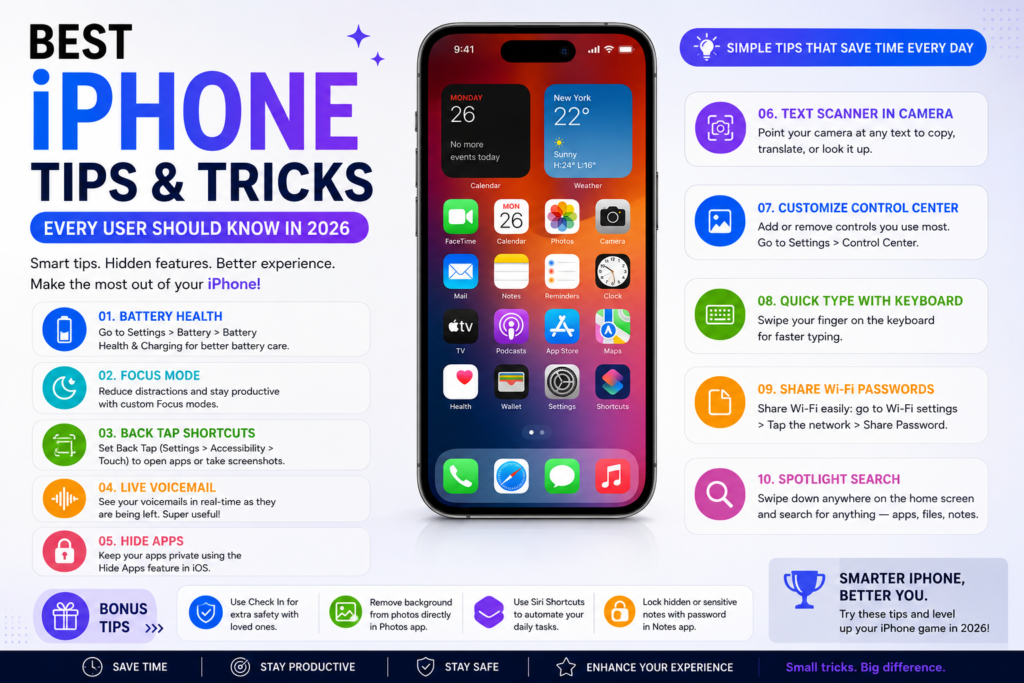
I’ve had an iPhone for over a decade now, and I still find new tricks constantly. Most of them never announced themselves. I found them buried in settings menus, mentioned briefly in a software update note, or shown to me by a friend who apparently reads Apple’s changelogs for fun.
Since iOS 26 rolled out with its Liquid Glass redesign, I’ve spent a genuinely embarrassing number of hours poking through settings just to see what changed. Some updates were purely visual. Others actually changed how I use my phone daily.
Here’s what I’ve picked up, tested personally, and would genuinely recommend to a friend setting up a new iPhone today.
1. Let Call Screening Handle Unknown Numbers
Spam calls used to interrupt my entire day, especially during work hours when I couldn’t easily ignore an unfamiliar number just in case it mattered.
Call Screening now collects basic information from unknown callers before your phone rings at all. You get a summary, then choose to pick up, decline, or ask for more details.
How to turn it on
Go to Settings, then Phone, then Call Screening. Toggle it on, and unknown numbers will automatically get filtered through this system going forward.
I genuinely didn’t expect to rely on this daily, but spam calls barely register as an annoyance anymore.
2. Try Hold Assist Instead of Waiting on the Phone

Customer service hold music used to eat chunks out of my afternoon, phone glued to my ear just waiting for an actual human to pick up.
Hold Assist now waits on the line for you. Once a real person answers, your phone alerts you immediately so you can jump back in.
Using it
Next time you’re placed on hold with a supported call, look for the Hold Assist prompt onscreen. Tap it, and go do literally anything else until it notifies you that someone’s ready.
This single feature alone has probably saved me a couple hours over the past few months.
3. Customize Your Lock Screen With the New Depth Effect
I used to treat my lock screen as an afterthought, whatever default photo happened to be selected during setup.
The new Lock Screen customization adds a genuinely striking 3D depth effect. Tilting your phone shifts the photo slightly, layering the subject in front of the clock and notifications in a way that looks surprisingly polished.
Setting it up
Press and hold your lock screen, tap the plus button, and select a photo. The system automatically detects the subject and applies the layered depth effect. Adjust positioning manually if it doesn’t look quite right on the first try.
My photo of my dog now looks like she’s genuinely popping out of the screen, which is a weirdly satisfying detail for something so small.
4. Tint or Simplify Your App Icons
App icons used to feel locked into whatever colorful design each developer chose, creating a cluttered, mismatched home screen that never felt cohesive.
Now you can tint icons to match a color palette, or switch them to a light, dark, or clear style entirely.
How to change it
Long press your home screen, tap Edit, then Customize. Choose a color tint or a light, dark, or clear appearance, and apply it across your entire home screen at once.
I switched mine to a clear, minimal style, and honestly, my home screen finally looks intentional instead of chaotic.
5. Use Live Translation in Messages and Calls
I traveled to Portugal last year and struggled constantly with a language barrier that made even simple restaurant orders stressful.
Live Translation now automatically translates incoming texts, shows live captions during FaceTime calls, and provides spoken translation during regular phone calls.
Turning it on
Open Settings, go to Apps, then Messages or FaceTime depending on which feature you need, and enable Live Translation. During a call, tap the translation icon onscreen to activate live captions or spoken translation.
Testing this with a friend who speaks primarily Spanish genuinely impressed me. It wasn’t flawless, but it handled everyday conversation well enough to actually help.
6. Scan Documents Directly in Preview
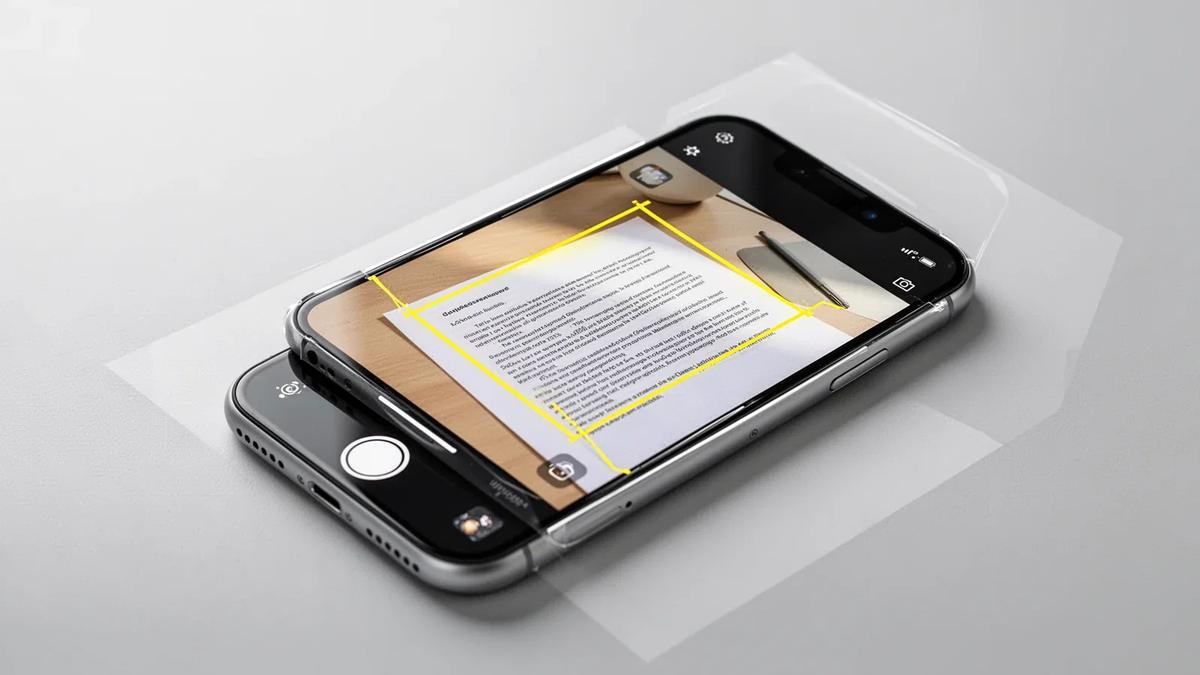
I used to email myself scanned pages or download a separate scanning app just to sign and send a simple form.
Preview now comes built directly into iPhone, letting you scan, annotate, and fill out PDF forms without leaving the app.
Quick workflow
Open Preview, tap the scan icon, and capture your document. Use Autofill to complete form fields automatically where possible, then export as a PDF or image directly from the share menu.
This replaced three separate apps I used to juggle for the exact same basic task.
7. Set Up a Digital ID in Wallet
I forgot my physical ID at home once trying to get through a TSA checkpoint, which turned into a stressful, time-consuming mess I never want to repeat.
Digital ID in Wallet lets you create a passport-verified identification you can present at select TSA checkpoints or within supported apps requiring age verification.
Setting it up
Open Wallet, tap the plus icon, and select Digital ID. Follow the verification steps using your passport, which takes a few minutes but only needs to happen once.
I still carry my physical ID as backup, but having this option genuinely reduced my travel anxiety.
8. Use Visual Intelligence to Identify Things Around You
I spotted an unfamiliar plant in a friend’s backyard and instinctively reached for my phone instead of just wondering about it for the rest of the day.
Visual Intelligence lets you point your camera at nearly anything and ask questions about what you’re seeing, plants, landmarks, products, you name it.
How to use it
Open Control Center and tap the camera circle icon, or long press the Action Button if you’ve assigned it there. Point your camera at an object and ask your question aloud.
It correctly identified that mystery plant as a variety of hydrangea, which honestly felt more satisfying than it probably should have.
9. Adjust the Liquid Glass Effect if It Bothers You
The new Liquid Glass design looks genuinely impressive, translucent menus, shimmering toggles, layered depth throughout the interface. Some people find it visually overwhelming or slightly distracting, though.
Fixing this
Go to Settings, then Display and Brightness, then Liquid Glass. Toggle between Full, Balanced, or Off depending on your preference.
I personally kept mine on Balanced after testing all three options for a week straight, since Full felt slightly busy on smaller screens.
10. Use Keep Audio in Headphones
My music used to switch automatically to my car speakers the moment I got in, even while I still had headphones connected and actively listening.
Keep Audio in Headphones prevents that automatic switch, keeping your audio exactly where you want it.
Turning it on
Settings, then Bluetooth, then tap the info icon next to your headphones, and enable Keep Audio in Headphones.
Small feature, genuinely annoying problem solved.
11. Create Custom Genmoji for Actual Personalized Reactions
Regular emoji felt limiting for specific inside jokes or reactions that never quite matched what I actually wanted to say.
Genmoji lets you create fully custom emoji using existing emoji combinations or written descriptions, even based on people from your own Photos library.
Making one
Open Messages, tap the emoji keyboard, then Genmoji. Type a description or combine existing emoji, and generate several options to choose from.
I made one of my dog wearing a tiny party hat for birthday texts, and it’s become a running joke within my friend group now.
12. Set Custom Snooze Duration for Alarms
The default nine-minute snooze always felt oddly arbitrary, either too short or too long depending on how tired I actually was.
You can now set a custom snooze duration anywhere from one to fifteen minutes.
Adjusting it
Open the Clock app, tap an alarm, and look for the snooze duration option within its settings. Set whatever number genuinely matches your actual sleep habits.
I settled on five minutes, which sounds minor but noticeably improved my mornings.
13. Use Enhanced Safety Alerts During Emergencies
A flash flood warning caught my area off guard last year, and I genuinely didn’t get clear information quickly enough to feel prepared.
Enhanced Safety Alerts now provide richer emergency information, including maps of affected areas and direct links to safety guidance, currently available in the United States.
This isn’t something you set up manually. It activates automatically during qualifying emergencies in supported regions, but it’s worth knowing it exists before you actually need it.
14. Try Swapping Siri for ChatGPT in CarPlay
Siri handles plenty of basic tasks fine, but I’ve found it occasionally struggles with more complex or conversational requests while driving.
iOS now allows swapping Siri for ChatGPT integration within CarPlay for certain voice interactions.
Setting this up
Go to Settings, then Apple Intelligence and Siri, then check the ChatGPT extension options available for CarPlay integration. Enable it, and it becomes available as a voice option during supported requests.
I use this mostly for more open-ended questions while driving, and it handles nuance noticeably better than basic voice commands alone.
Common Mistakes People Make With New iPhone Features
Ignoring software updates entirely, missing genuinely useful features simply because notifications got dismissed without reading what actually changed.
Assuming a feature isn’t available without actually checking Settings, several of these tools sit buried several menus deep and never announce themselves clearly.
Enabling everything simultaneously, leading to a cluttered, confusing experience rather than genuinely useful customization. Testing one or two new features weekly works far better than changing everything all at once.
Forgetting that some features, like Digital ID or Enhanced Safety Alerts, remain limited to specific regions or require particular iPhone models to function properly.
A Few Things Worth Keeping in Mind
Feature availability varies depending on your specific iPhone model, region, carrier, and current software version. Always check Settings directly rather than assuming a feature mentioned somewhere online applies universally to every device.
Apple regularly updates iOS with smaller point releases throughout the year, meaning new tricks worth learning show up gradually rather than all at once during a single major update.
Final Thoughts
That spam call about a car warranty I don’t own genuinely sparked this whole deep dive into what my phone could actually do. It’s strange how many useful tools sit quietly available, waiting for someone to actually look for them.
Your iPhone almost certainly does more than you’re currently using it for. Pick two or three features from this list that solve an actual daily annoyance, test them for a week, and see what sticks.
Chances are you’ll end up finding your own hidden favorite feature that nobody bothered mentioning to you either.